Features
Complete features of Pixel LED Studio Pro — LED Layout Creator, a curated effects library, timeline editor, DXF import, AI timeline, canvas tools, masks, and multi-format export. Windows 10/11.
Pixel LED Studio Pro is a desktop application for creating animated LED light shows. Design physical LED layouts, sequence effects on a timeline, and export to MP4, AVI, or XDAT for LEDEdit compilation.
Feature overview
Installers and LEDEdit users can scan this page fast
Pixel LED Studio Pro is strongest where the physical LED layout matters: DXF drawings, controller ports, wiring order, timeline content, live mapped preview, and a clean LEDEdit/LEDEdit-K handoff.
What it helps with
Plan real LED positions, create content against those positions, and spot layout or port mistakes before the controller setup stage.
LEDEdit/LEDEdit-K handoff
The app exports media and layout-ready content for the next step. LEDEdit or LEDEdit-K is still normally used to compile the final .led controller program.
Project organization
Keep customer work inside one project folder with imported media, LED mapping files, exports, and previews that are easier to reopen later.
Core software functions
Layout mapping
Create a real LED map with ports, wiring order, labels, validation, and controller-aware limits before animation work starts.
Timeline production
Layer effects, video, images, text, masks, and scenes on a timeline built for repeated preview and export cycles.
Project asset control
Collect external media into the project folder so customer jobs stay portable, organized, and easier to reopen later.
Live LED preview
Preview content on the mapped LED positions, not just a flat video rectangle, so layout mistakes are caught earlier.
Color and palette tools
Build branded looks with custom palettes, gradient modes, glow, opacity, and per-effect color parameters.
Export handoff
Render MP4, AVI, MOV, MKV, and XDAT outputs for the next LEDEdit or LEDEdit-K compile step.
LED Layout Creator
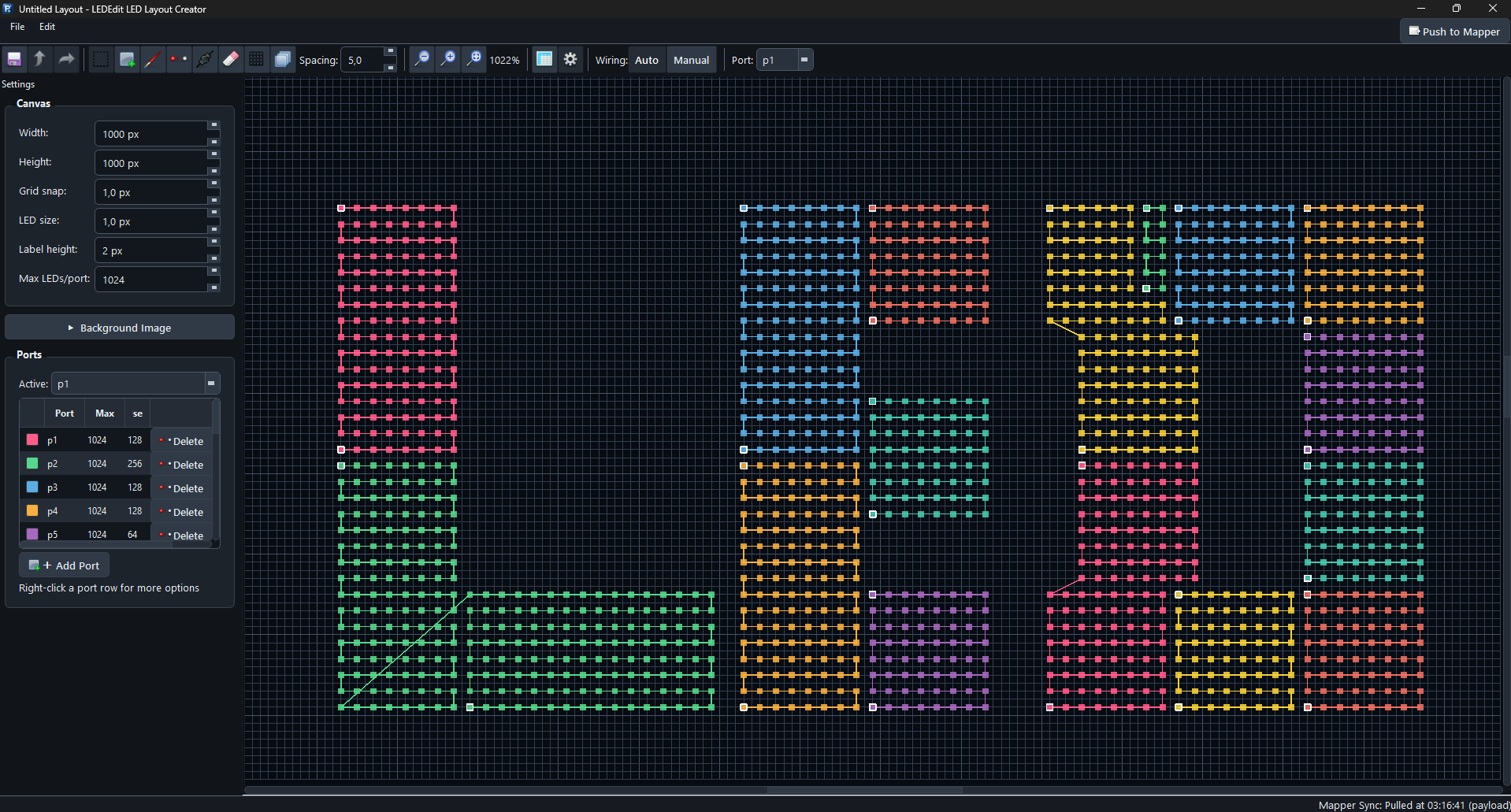
Create and manage physical LED layouts on a virtual canvas. Every LED is represented as a positioned dot with port assignment and wiring order.
Canvas & Dimensions
- Physical canvas in millimeters (default 1000×1000mm, adjustable from 10×10 to 50000×50000)
- Grid snap from 0.1mm to 500mm
- Adjustable LED dot diameter and label height
- Background reference image with opacity/scale/offset/mirror/lock controls
Port Management
- Up to 64 ports, 1024 LEDs per port
- Port color coding — each port assigned a distinct color
- Active port selector — new LEDs are added to the active port
- Port table with color swatch, port number, max LEDs, used count
- Right-click port context menu: Set Active, Move LEDs To Another Port, Move + Delete, Reindex, Delete
- Validation with visual feedback — LEDs colored green (OK), orange (warnings), red (errors)
Tool Modes (7 modes)
- Select (S key) — Click, multi-select, group drag with collision detection
- Add LED — Place individual LEDs with snap-to-grid
- Draw LEDs (P key) — Continuous click-drag painting with configurable minimum spacing and ghost cursor preview
- Delete LED (Del key) — Click or drag to delete
- Connect — Click two LEDs to create a wiring connection; chains enforce max degree-2
- Erase Connection — Click a connection line to remove it
- Pattern Builder — Opens a dialog to configure grid patterns, then stamps them onto the canvas
Pattern Builder
- Rows and columns (1–512)
- Horizontal and vertical spacing
- 4 routing options: Rows Serpentine, Columns Serpentine, Rows Linear, Columns Linear
- 4 start corners: Top-Left, Top-Right, Bottom-Left, Bottom-Right
- 3 insert modes: Just LEDs (no port), Add to current port, Create new port
Grid Fill Wizard Quick dialog-based fill: specify columns, rows, spacing, and start position to generate a grid.
Wiring Modes (5 modes)
- Manual — Full control, draw connections one by one
- Serpentine Z — Row-by-row zigzag
- Serpentine S — Column-by-column zigzag
- Linear L-R — Left-to-right, row by row
- Linear T-B — Top-to-bottom, column by column
- Auto-wiring: new LEDs auto-connect in index order when auto mode is enabled
LED Operations
- Copy (Ctrl+C), Paste (Ctrl+V), Duplicate (Ctrl+D), Cut (Ctrl+X)
- Nudge with arrow keys or WASD (Shift = 5× snap distance)
- Context menu: Change Port, Set Index, Auto-Connect Selected
- Bidirectional selection sync with LED table
- Full undo/redo for all operations
Validation
- Per-LED validation: checks for port overflow, duplicate indices, missing connections, gap detection
- Status bar shows LED count, ports used, validation state, connection count
- Fix Wiring Gaps: reindexes consecutively, optionally regenerates manual connections
Import & Export
- Import DXF — CIRCLE entities on layer “LEDS” become LED positions; LINE entities on layer “WIRES” become connections; handles European comma-decimal format
- Export DXF — Layout to AutoCAD-compatible DXF
- Export PNG, BMP, CSV — Layout documentation
- LEDEdit Export — Push/pull to main app LED mapper for preview and video export
Effects Engine — Curated Effects
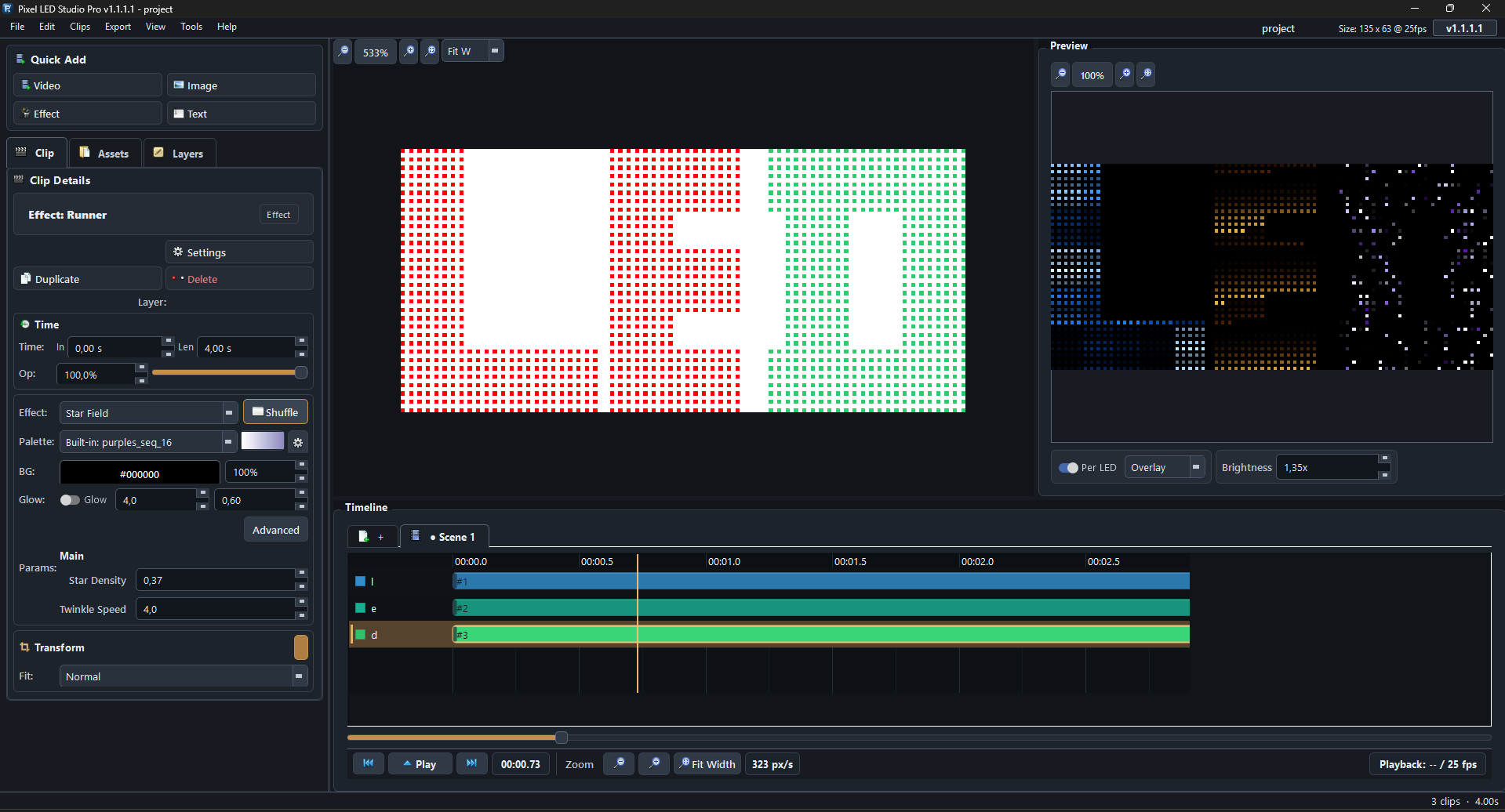
All effects render per-LED in real time. Organized into 13 categories:
| Category | Effects |
|---|---|
| Simple | Breathe, color march, marquee dots, comet tail, waveform (sine/square/triangle/saw) |
| Motion | Chaser (runner/scanner/meteor/larson), pulse envelope, plasma chase |
| Organic | Ripple (circle/square/diamond/star/spiral), sparkle, plasma flow, metaballs, snowfall |
| Panel | Aurora curtain, fire columns, meteor shower, star field, grid cells, neon rings, prism fan |
| Stripe | Stripe runner, breathe, center wave, dual block, fade flow, fill, gradient wave, segments, sparkle |
| Pattern | Theater chase, candy cane, twinkle fade, color wipe, scanline sweep, strobe blocks, helix runner, radar sweep, matrix rain, pendulum wave |
| Pixel Art | Pixel snake, wave line, pixel bounce, cross, chevron, ring |
| Ambient | Ocean waves, DNA helix, color organ, crystal Voronoi, plasma rings |
| Vivid | Kaleidoscope, lava lamp, tunnel vortex, hypno spiral, light shafts, aurora wave, Perlin clouds, diamond lattice |
| Extra | Orbiting rings, wave tunnel, prism slices, rain bars, diamond zoom, starburst, ribbon flow, cellular pulse, cross weave, energy grid |
| Crazy | Glitch storm, lightning chain, pixel rain, vortex spin, firework burst |
| Transition | Fade in, fade out, wipe |
| Gradient | 28 geometric modes: linear, radial, diamond, square, angular, spiral, rings, checker, turbulence, flower, more |
Per-Effect Controls
- Each effect has dedicated parameters: speed, intensity, direction, scale, tail length, color count, and more
- Real-time parameter adjustment — see changes instantly in the preview
- Colormap selection from built-in color palettes (gradient palettes)
Timeline Editor
Sequence your LED shows on a multi-track timeline.
Clip Types (4 types)
- Video clips — Import MP4, AVI, MOV, and other formats
- Image clips — PNG, JPG, GIF, SVG with 22 animation types (pan, zoom, fade, bounce, etc.)
- Text clips — Scroll, fade, typewriter animations with font/size/color controls
- Effect clips — Choose from the current curated LED effect catalog with full parameter control
Timeline Features
- Multi-scene with tabbed navigation
- Drag-drop clip repositioning and edge-drag trimming
- Snap-to-grid with configurable snap step (1.0s, 0.5s, 0.25s, 0.1s)
- Rulers and markers for precise timing
- Timeline zoom slider with presets (45/90/135/180 px/s, Fit, Custom)
- Clip table view for spreadsheet-style editing with ID, Layer, Type, Start, Duration, Effect, Path columns
- Right-click context menu on clips: edit, delete, duplicate, change layer, transform
- Copy, paste, duplicate, split clip operations
- Multi-layer support with per-layer compositing
Canvas Drawing Tools

Edit per-layer content directly on the canvas.
5 Drawing Tools
- Select (V) — Move and transform canvas content
- Pen (B) — Freehand drawing with adjustable brush size and alpha
- Eraser (E) — Erase with adjustable brush size
- Rectangle (R) — Draw filled rectangles
- Ellipse (C) — Draw filled ellipses
Canvas Controls
- Zoom slider and preset: fit width, fit height, actual size
- Brush size slider
- Brush alpha (opacity) slider
- Grid snap toggle and snap step selector
Mask Layers
Control per-layer LED visibility with drawing tools.
- Pen, eraser, rectangle, ellipse, polygon drawing tools
- Reference modes: greyscale, high-contrast, ghost (semi-transparent overlay)
- Layer color, opacity, visibility controls
- Merge layers, brush size adjustment
- Warning badges when layers have clips but empty masks
- LED preview overlay — see live LED layout overlaid on canvas content
LED Preview
See how your content maps to the real LED installation in real time.
- Load
.rllayoutlayout files for LED position mapping - Normal preview — canvas content with LED positions overlaid
- LED-only view — displays only what LEDs will show
- Brightness control slider
- Auto-detect red LED dots from reference image
- Dark/light background toggle for mask preview
AI Timeline
Generate timeline sequences from natural language descriptions.
- LLM-powered planning (OpenAI-compatible API: DeepSeek, Claude, Gemini, GPT-5, etc.)
- Create new timeline, extend existing, or replace layer
- Preview generated plan before applying
- AI colormap generation — describe colors and get matching palettes
Auto Animate — Generate clip sequences with 8 animation styles:
- Cascade, Blink, PingPong, Wave, Random Stagger, Alternating, Stack Build, Burst
- Configurable interval, duration, count, style, and repeat
- Background-thread generation, AI-powered variant available
Export Formats
Export your sequence for LEDEdit compilation or archival:
| Format | Extension | Codec / Type | Use |
|---|---|---|---|
| MP4 | .mp4 | H.264 | Standard export for LEDEdit |
| MP4 (HEVC) | .mp4 | H.265 | Smaller file size |
| AVI | .avi | Raw / HuffYUV | Lossless export for LEDEdit |
| MKV | .mkv | FFV1 | Lossless archival |
| MOV | .mov | ProRes 4444 | Archival with alpha channel |
| XDAT | .xdat | LEDEdit-native video | For LEDEdit-K workflow |
Export settings: resolution, frame rate, codec, quality. Progress dialog with estimated time.
Palette Editor
Create and manage gradient color palettes.
- Gradient editor with draggable color stops
- Add, reverse, invert, double palette operations
- Color picker for each stop
- Palette length control
- built-in color palettes included
Asset Management
Built-in asset browser for effects, shapes, and colormaps.
- Project-local asset collection — media files stored inside the project directory
- Category tree: video, image, audio, other
- Import, Refresh, Collect (copy external media into project), Open Folder
- Drag-and-drop assets to timeline
- Built-in asset store: effect previews, SVG shape library, colormap browser
Project Bundle System
Every project is a self-contained directory:
data/projects/<Project Name>/
  project.rlmproj      # Project file (JSON)
  assets/               # Imported video/image/source media
  exports/              # Rendered handoff files
  led_mapping/          # LED layout files (.rllayout)
  previews/             # Cached preview frames
- Open any project, tweak content, re-export in seconds
- Auto-backup on save
- Versioned project format
- Unsaved changes indicator with asterisk in title bar
- Configurable autosave timer
Settings & Customization
- Themes: Light and Dark
- Export profiles: Configure default format, codec, resolution, frame rate
- Default FPS: 10–60 FPS
- AI API configuration: API key, model selection, endpoint URL
- Data root path: Choose where projects are stored
- Autosave: Toggle on/off, configurable interval
- Timeline defaults: Default duration, clip spacing
Production Workflow Details
Pixel LED Studio Pro is designed around the work that usually happens before controller compilation:
- Import or draw the installation layout.
- Assign ports and confirm wiring order.
- Collect source media into the project folder.
- Build reusable scenes and layer-based timelines.
- Preview the result on mapped LEDs.
- Export the right intermediate file for LEDEdit.
Technical
- OS: Windows 10 and 11 (x86_64)
- Project format:
.rlmproj(JSON) - Layout format:
.rllayout(JSON) - License: Monthly or yearly license, email support